Secure Technician Access with 2FA and Session PIN in Telmetra
Security without added friction — that’s the goal.
Telmetra’s Technician Profile Settings let you lock down remote session workflows using two-factor authentication (2FA) and a session PIN. These controls reduce unauthorized access while keeping your daily operations smooth and predictable.
Ideal for:
- Technicians regularly logging into the Web Console
- MSP teams who share workstations
- Operators needing stronger controls on session starts
Answer first
For IT support teams, the highest ROI security controls are the ones that protect daily workflows:
- 2FA protects logins from stolen passwords
- Session PIN protects session starts on shared or unattended consoles
Start here for the full “secure remote support workflow”:
What These Security Features Do
- 🔐 2FA – Adds time-based verification during sign-in
- 🔁 Session PIN – Prompts for a technician-defined PIN before launching sessions
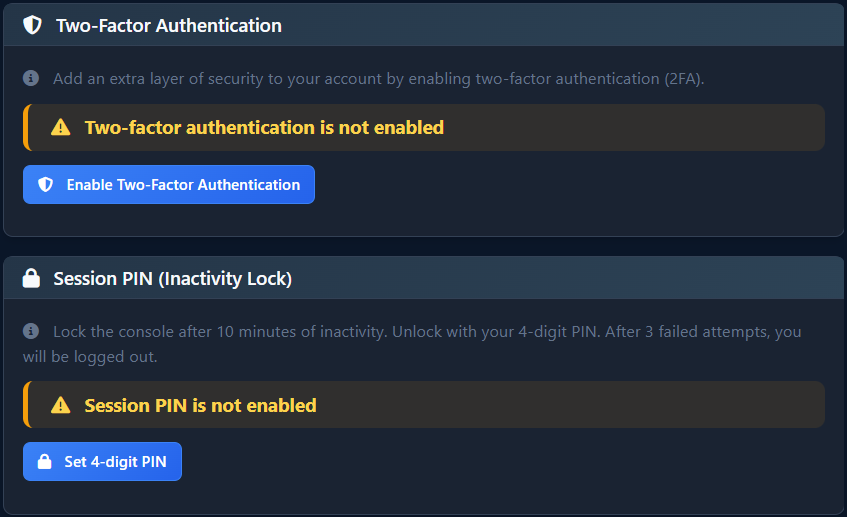
- ✅ Protection Status – Shows whether 2FA and PIN are currently enabled
Together, these reduce:
- Account takeover risk
- Accidental sessions from shared/unlocked terminals
- Unauthorized use of already-authenticated consoles
Two-Factor Authentication (2FA) for Technicians
Once enabled, 2FA requires a time-based code (from Google Authenticator, Authy, etc.) in addition to your email and password at sign-in.
Operational Outcome:
- Compromised credentials alone can’t grant access
- Every technician login becomes verifiable and auditable
This is the first line of defense against stolen passwords and unauthorized logins.
Session PIN: Gate Session Start Actions
Even if a technician is logged into the console, session PIN requires a second confirmation at the moment of launching a remote session. This is especially useful when:
- Working from a shared workstation
- Using an unattended browser
- Preventing misclicks or “oops” remote connects
Operational Outcome:
- Launching a remote session prompts for the PIN
- Reduces opportunistic access and accidental sessions
The PIN is separate from your account password and stored securely per user.
2-Minute Workflow: Enable Both Protections
📍 Start from: Telmetra Web Console → Technician Profile Settings
- Go to Technician Profile Settings
- Open the Security section
- Under 2FA, click Enable 2FA
- Scan the QR code in your authenticator app and enter the generated code
- Under Session PIN, click Set PIN
- Choose a 4–6 digit PIN and confirm it
- Click Save
✅ After setup:
- 2FA will be required at next login
- Session PIN will be prompted on session-start actions
Things to Double-Check
- ✅ 2FA shows “Enabled” in Technician Profile Settings
- ✅ Session PIN shows “Set”
- 🕒 Your phone’s time sync is on (TOTP codes rely on accurate time)
- 🚫 Avoid sharing accounts between techs — this defeats the purpose of per-user security
- 🔄 Test session launches after setup to confirm the PIN prompt appears
FAQ
Does 2FA affect how sessions start?
No — 2FA only affects login. The session PIN controls session launch behavior.
What if I lose access to my 2FA app?
You won’t be able to sign in. Contact your admin to reset your 2FA.
Is the session PIN the same as my password?
No — it’s a separate code, used only at the point of launching a session.
Will I be asked for the PIN on every session?
Only when launching a session that requires confirmation. The prompt appears in real-time.
Where do I see if 2FA and PIN are enabled?
In Technician Profile Settings → Security, you’ll see both statuses.
Why This Matters
Account breaches and unintended session launches are among the most common operational risks in remote IT.
Telmetra’s technician-specific security controls:
- Block unauthorized sign-ins
- Prevent “walk-up” abuse on shared machines
- Ensure accountability and traceability across support actions
All with minimal disruption to your day.
✅ Lock Down Console Access Today
Enable 2FA and session PIN in your Technician Profile Settings — it only takes 2 minutes and adds critical safeguards to your support workflow.