A SQL Server backup only helps if it runs every night, can be read back, and does not leave a copy of the database lying around. Telmetra now backs up SQL Server databases on the computers you manage: you sign in once on the computer, then pick the databases in the console.
Each database is backed up by SQL Server itself, checked, zipped, and the ZIP is read back before the temporary .bak is deleted. Watch the short tour, then follow the steps below. For all backup options, see Telmetra backups.
Answer first
A SQL Server backup in Telmetra is a scheduled, copy-only full backup of the databases you pick, made by SQL Server on the computer itself. Telmetra checks each backup with RESTORE VERIFYONLY, zips it by default, reads the ZIP back, and only then deletes the temporary .bak.
It works with a SQL Server instance on the same Windows computer as the Telmetra agent, including SQL Server Express, which has no SQL Server Agent to schedule backups.
Quick steps
- On the computer, open the Telmetra tray menu and choose SQL Server setup… (in a Remote Control session if you are not there).
- Pick the instance, choose Windows authentication or SQL Server login, and press Authenticate. The tray icon turns to colour when it works.
- In the console, open the computer, go to Backups and press Add Backup.
- Under What to back up, choose SQL Server databases and tick the databases from the live list, or press Select all user databases.
- Choose the destination and the schedule, then press Save Backup.
- In Configure, Keep destination as ZIP is already on. Turn on Encrypt ZIP (password) and set a password you keep in your password vault.
Key takeaways
- The SQL Server sign-in is stored encrypted on that computer only. The console never receives the login or the password.
- Backups are copy-only, so the backup plan already on the server keeps working as before.
- Every .bak is checked by SQL Server, and every ZIP is read back and compared with the .bak before the .bak is deleted.
- If the sign-in stops working, the tray icon turns grey, the console marks the computer's database backups, and you get a critical notification.
- A verified backup is not a restore test. Restore one now and then.
Table of contents
- What a SQL Server backup in Telmetra does
- Sign in on the computer
- Create the backup in the console
- When the sign-in stops working
- Restore a database
- Privacy and control
- What SQL Server backups in Telmetra do not do
- Common pitfalls
- FAQ
- Next step
What a SQL Server backup in Telmetra does
Every run goes through the same steps for each database you picked, one database at a time.
| Step | What happens | Why it matters |
|---|---|---|
| Space check | Telmetra checks there is room for the backup on the computer, and in the destination folder when it is one | A full disk fails early, with a clear message |
| Backup | SQL Server writes a copy-only full backup with checksums | Your existing backup plan is not disturbed |
| Verify | SQL Server runs RESTORE VERIFYONLY on it, and Telmetra checks it holds the right database | A damaged or incomplete file is caught before it is kept |
| ZIP | The .bak is zipped, with a password if you set one | Smaller files, and the database is not stored in the clear |
| Read back | The ZIP is unpacked again and compared with the .bak | The file you keep is proven to match what SQL Server wrote |
| Clean up | The temporary .bak is deleted only after that | No .bak is left behind on the computer |
Each database gets its own file, named after it, in a folder per run. Older runs are removed after the retention days you set. With ZIP turned off, the checked .bak itself is stored at the destination.
The destination can be a folder on the computer or the network, Google Drive, or Backblaze B2, the same destinations as for file backups. The backup goes from the computer straight to the destination.
Sign in on the computer
Telmetra signs in to SQL Server on the computer itself, so the sign-in is set there, from the tray menu. If you are not at the computer, start a Remote Control session first.
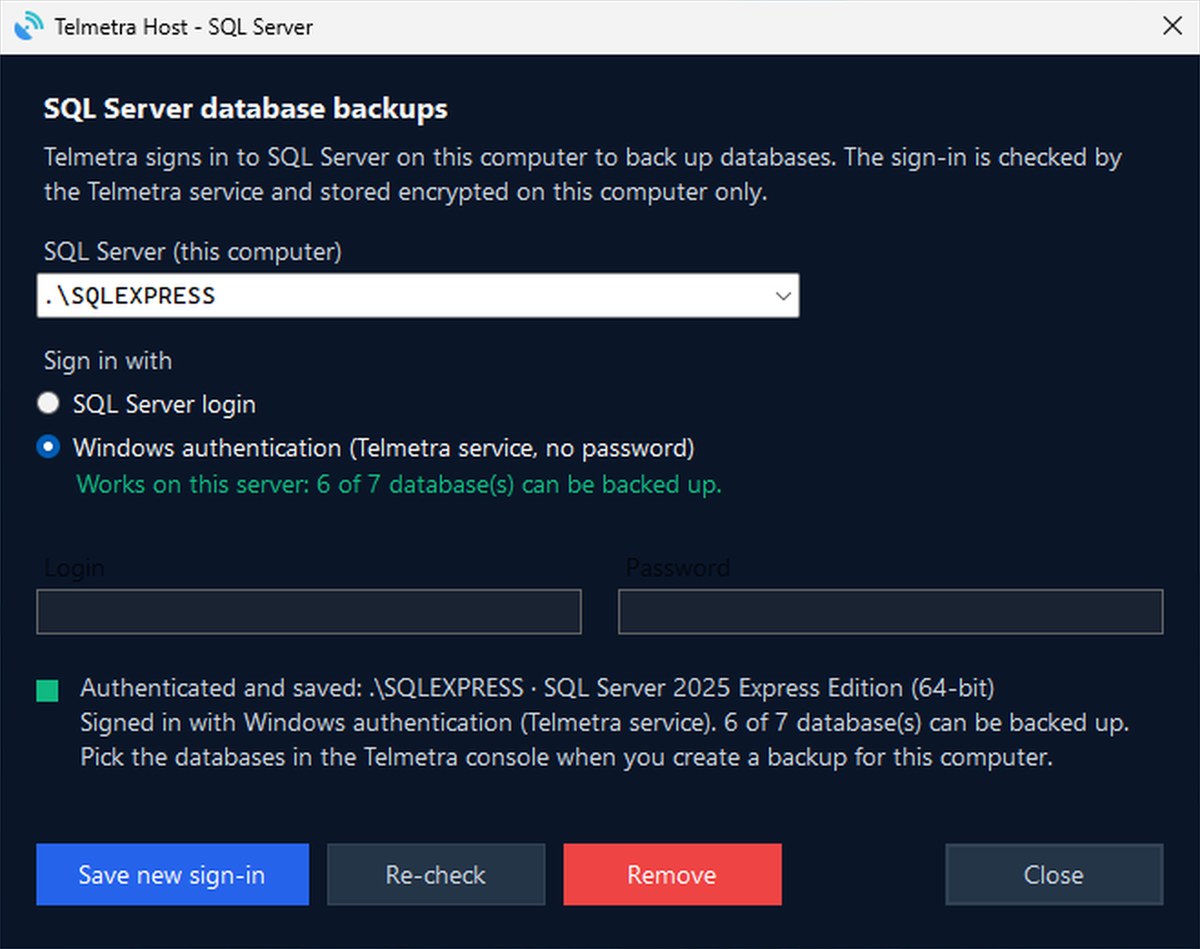
- Open the Telmetra tray menu. The SQL Server setup… item is grey until SQL Server backups are signed in.
- Pick the instance from SQL Server (this computer).
- Choose how to sign in:
- Windows authentication uses the account the Telmetra service runs as, with no password. The form tells you right away whether it works on this server.
- SQL Server login uses a login and password you enter.
- Press Authenticate. Telmetra checks the sign-in before it saves anything and shows the server and how many databases this sign-in can back up.
The login needs to be able to back up and verify: sysadmin, or dbcreator plus db_backupoperator in each database. The form says which right is missing when a check fails.
Afterwards the tray item shows the instance in colour. Re-check tests the saved sign-in again, Save new sign-in replaces it, and Remove deletes it from the computer.
Create the backup in the console
- Open the computer and go to Backups. Next to Add Backup, a small SQL Server label shows whether the sign-in on that computer works.
- Press Add Backup, give it a name and choose the destination.
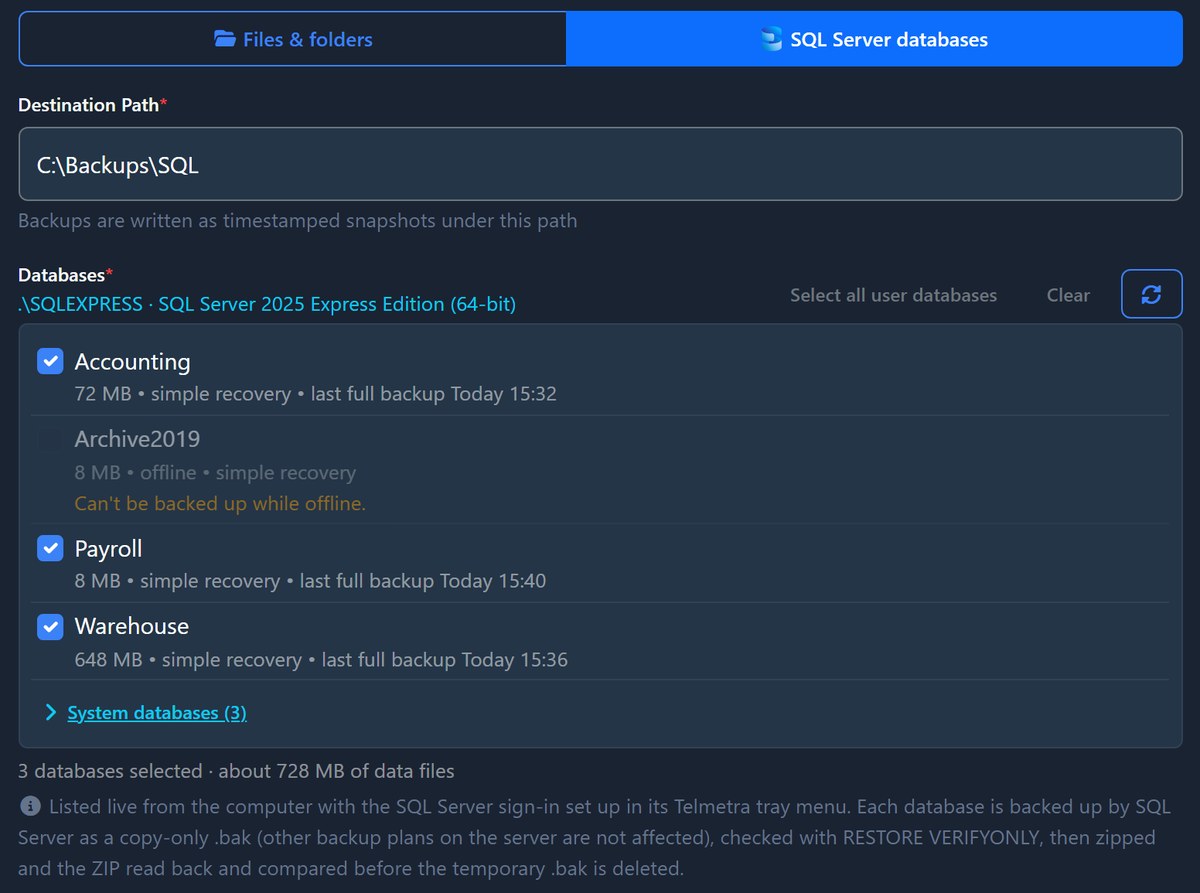
- Under What to back up, choose SQL Server databases. Telmetra reads the list live from the computer: size, recovery model and last full backup for each database. Offline databases are listed but cannot be picked.
- Tick the databases, or press Select all user databases. System databases are under their own heading if you want them too.
- Pick the schedule and press Save Backup.
- Open Configure on the new backup. Keep destination as ZIP is on by default for database backups. Turn on Encrypt ZIP (password) and set a password. Telmetra cannot show it to you later.
While a backup runs, its status shows the current step and how far it is. When it finishes, you see the size and the result, as for any other backup. A failed run raises a notification.
When the sign-in stops working
A password changes, a login is removed, or the SQL Server service stops. Telmetra checks the saved sign-in every 15 minutes and whenever someone opens the tray form.
- The tray item turns grey again and says what is wrong.
- In the console, the SQL Server label, the computer's database backups and the computers list show a warning.
- A critical notification named SQL Server sign-in lost says what is wrong and what to do: start a Remote Control session, open the tray menu and choose SQL Server. Push and e-mail follow each user's notification settings.
The notification comes only when that computer has database backups switched on. While it is unread, it is not repeated for the same computer on the same day.
Restore a database
Telmetra does not restore databases. To restore, take the file for that database from the run you want:
- Unpack the ZIP with your ZIP password, using a tool that opens AES-encrypted ZIP files, such as 7-Zip.
- Restore the .bak with SQL Server Management Studio or RESTORE DATABASE, as you would any full backup.
If the database uses Transparent Data Encryption, the server you restore it on needs the TDE certificate. Telmetra marks such databases with a TDE badge in the list and does not back up the certificate.
Privacy and control
- The sign-in stays on the computer. It is encrypted with Windows data protection for the Telmetra service and kept in a folder only the system and administrators can open. It is not written to the Telmetra configuration file, and it is never sent to the console.
- What the console receives. Whether the sign-in works, the instance name and version, and for the database list: database names, sizes, states, recovery model and the date of the last full backup.
- Where the data goes. Backups go from the computer directly to the destination you chose. They are not stored on Telmetra servers, as the Privacy Policy says for all backups.
- Your password, your file. A ZIP password protects the archive. Telmetra cannot recover it, so keep it in your password vault.
What SQL Server backups in Telmetra do not do
- They make full, copy-only backups. No differential or transaction log backups, and no point-in-time restore.
- They back up one SQL Server instance per computer, on that same computer. Not a server on another machine, not a failover cluster instance, and not LocalDB.
- They do not restore anything. You restore with SQL Server's own tools.
- They do not back up the TDE certificate of an encrypted database.
- RESTORE VERIFYONLY checks that a backup is complete and readable. It is not a restore test, and a successful run does not prove the database inside is free of damage. Test a restore now and then.
- They do not replace a backup plan you already have. They run next to it.
Common pitfalls
- Windows authentication says it is not available. By default, the Windows account the Telmetra service runs as has no rights in SQL Server. Use a SQL Server login, or give that account a login with backup rights.
- The login can sign in but cannot verify. RESTORE VERIFYONLY needs the right to create databases. Use sysadmin, or dbcreator plus db_backupoperator in each database.
- Not enough free space. The .bak is written on the computer first. It needs free space about the size of the backup, and the run stops with a clear message when there is not.
- A lost ZIP password. Nobody can open the archive without it, Telmetra included. Store it before you save.
- A database that went offline. It cannot be backed up, so the run reports it as failed and backs up the others, unless Abort on first failed database is on.
- The console says the computer can't back up SQL Server yet. Its Telmetra agent has not updated yet. It updates itself automatically; try again later.
FAQ
How does Telmetra back up SQL Server?
Telmetra asks SQL Server on the computer to write a copy-only full backup with checksums, checks it with RESTORE VERIFYONLY, zips it by default, reads the ZIP back and compares it with the .bak, then deletes the temporary .bak. You pick the databases in the console, and the backup runs on the schedule you set.
Can Telmetra back up SQL Server Express?
Yes. Telmetra schedules the backup itself, so it does not need SQL Server Agent, which Express does not have. The tour in this post was recorded on SQL Server Express.
Where is the SQL Server password stored?
On the computer only, encrypted with Windows data protection for the Telmetra service, in a folder only the system and administrators can open. It is not in the Telmetra configuration file and is never sent to the console.
Will Telmetra break my existing SQL Server backup plan?
No. Telmetra makes copy-only backups, which do not change the base of your differential backups or your transaction log chain. Your existing plan keeps working as before.
Is every SQL Server backup verified?
Yes. SQL Server checks each backup with RESTORE VERIFYONLY, and the ZIP is read back and compared with the .bak before the .bak is deleted. This proves the file is complete and readable. It is not a restore test, so restore one now and then.
Can I back up SQL Server to Google Drive or Backblaze B2?
Yes. A database backup can go to a folder on the computer or the network, to Google Drive or to Backblaze B2, like a file backup. It goes from the computer straight to the destination.
Can Telmetra back up a SQL Server on another computer?
No. Telmetra backs up a SQL Server instance on the same computer as the Telmetra agent. Install the agent on the SQL Server computer.
Next step
Open the tray menu on the computer that runs SQL Server, choose SQL Server setup… and press Authenticate. Then add one database backup in the console, run it once with Run now, and restore that file on a test server.
For the other backup options, see Telmetra backups and endpoint backups for MSPs to a file system or Google Drive.
Social sharing hooks
- SQL Server backups that check themselves: copy-only, RESTORE VERIFYONLY, zipped, read back, and no .bak left behind. Set it up once from the tray. https://telmetra.com/blog/sql-server-backup-telmetra
- Backing up SQL Server Express without SQL Server Agent: pick the databases in the Telmetra console, and get a critical notification if the sign-in stops working. https://telmetra.com/blog/sql-server-backup-telmetra