Notification routing by severity (Email + Push)
Avoid inbox overload and stay focused on what matters. Telmetra's email and push notifications help sysadmins, MSPs, and IT operators route alerts by severity — ensuring critical issues reach you, while routine noise stays out of your way.
Answer first
The goal of alerting is simple: route actionable issues to the right place and keep noise out of the inbox.
Quick steps
- Open Settings → Notification Settings
- Enable Critical email delivery (leave Info/Warning off unless you truly need them)
- Optionally enable Push Notifications for real-time pings
Start here for the broader alerting strategy:
Notification Settings at a Glance
The Notification Settings dialog provides two independent delivery paths:
- Push Notifications
- Toggle browser push delivery for new alerts
- Status banner confirms when push is enabled
- Email Notifications
- Choose which severity levels are delivered to your inbox:
- Info
- Warning
- Critical
- Choose which severity levels are delivered to your inbox:
What You Can Do Here
- Enable or disable browser push delivery for alerts
- Select which alert severities (if any) are delivered by email
- Scope email traffic to high-urgency events only
Configure Email Notifications
Under Email Notifications, select one or more severities to receive:
- Info – Low-priority notifications, e.g., completed background tasks
- Warning – Mid-level alerts that may require attention
- Critical – High-priority issues needing immediate action
Selections take effect immediately and can be toggled as needed.
Push Delivery Control
In the Push Notifications section, use the toggle to enable browser-based alerts.
Once enabled, you’ll see a green confirmation banner stating that push is active — this means your browser will deliver real-time alert pings even without email enabled.
2-Minute Workflow: Enable Inbox Delivery for Critical Alerts
- Open the Telmetra Web Console
- Navigate to Settings → Notification Settings
- Under Email Notifications, check Critical
- Leave Info and Warning unchecked
- Close the dialog
✅ Result: Critical alerts will now be delivered via email; your inbox stays focused.
Screenshot Reference
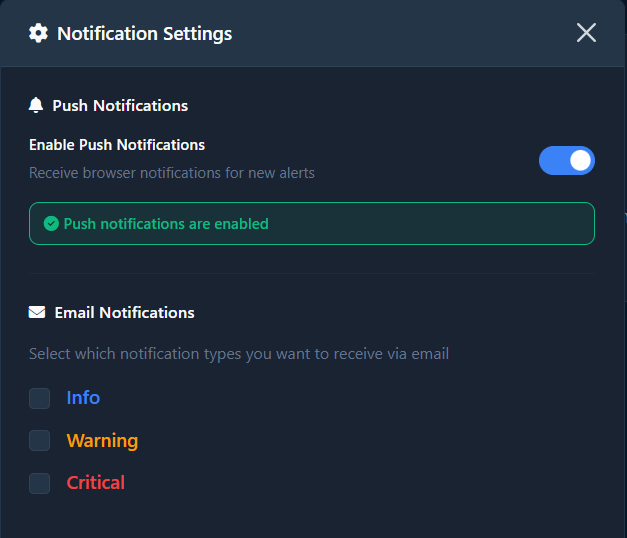
- Push Notifications toggle with enabled status banner
- Email Notifications checkboxes for Info, Warning, and Critical
Things to Double-Check
- ✅ The Critical checkbox remains checked after saving
- ✅ Other severities are unchecked (if not desired)
- ✅ The green push status banner appears when push is enabled
FAQ
How do I receive only critical alerts by email?
Open Notification Settings, then check Critical and uncheck Info and Warning under Email Notifications.
How do I stop all inbox alerts?
Uncheck all severities under Email Notifications: Info, Warning, and Critical.
Where do I confirm that push is enabled?
In Notification Settings, a green banner will appear above the toggle when push is successfully enabled.
Does enabling push also send email alerts?
No — push and email are managed separately. Use the toggle for push, and the checkboxes for email.
Why This Matters
Excessive alert noise leads to missed issues and burnout. With Telmetra, you control how and when alerts reach you, so your team reacts faster to real problems — without inbox fatigue.
✅ Start Fine-Tuning Your Alerts
Log in to your Telmetra dashboard to configure push and inbox delivery in minutes.