Monitor Folder Growth and Detect New Files with Telmetra
Need to know which folder is filling up your remote disk — and when it started?
Telmetra’s Files & Folders monitoring helps IT technicians and MSPs track folder size history, detect file changes, and trigger alarms based on growth trends or new files.
Whether you're cleaning up servers, troubleshooting space issues, or validating backups, Telmetra surfaces the change fast — no RDP session required.
Answer first
Most “disk full” incidents are predictable if you track growth over time. Files & Folders monitoring shows you which directory is growing, when it started, and can raise alarms when it crosses thresholds.
Start here for the complete maintenance workflow:
Key Capabilities at a Glance
- 📁 Monitor specific folder paths as segments
- 📊 View folder size history and growth trends
- ⚠️ Get alarm indicators for size thresholds, sudden growth, or new file creation
- 🔄 Refresh collection data instantly during investigation
- 🧭 Triage which folder changed, when, and how fast
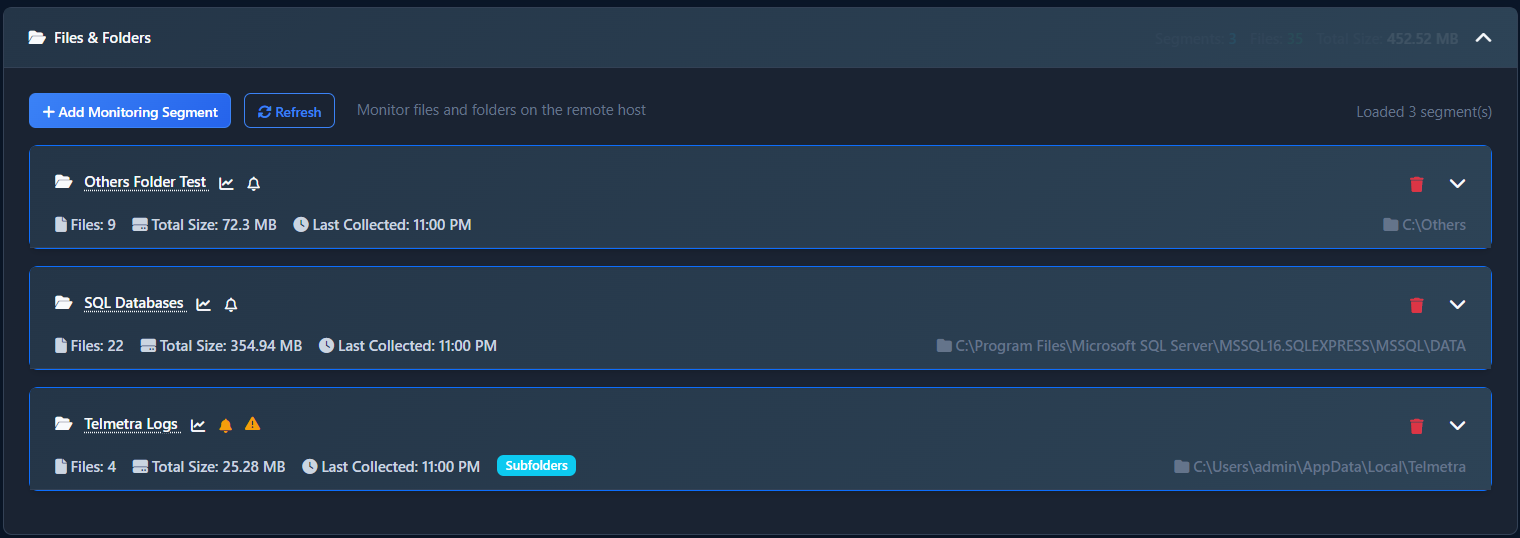
Files & Folders Panel Overview
Each monitoring segment tracks a specific path on the remote host:
| Field | Description |
|---|---|
| Path | Monitored root folder |
| Files | Count of files in the latest scan |
| Total Size | Combined size of all files in the segment |
| Last Collected | Timestamp of the most recent scan |
| Status Indicators | Show if alarms are active on the segment |
You can add, remove, or refresh segments from this panel.
📸 Example – Files & Folders Panel
Folder Size History and Trends
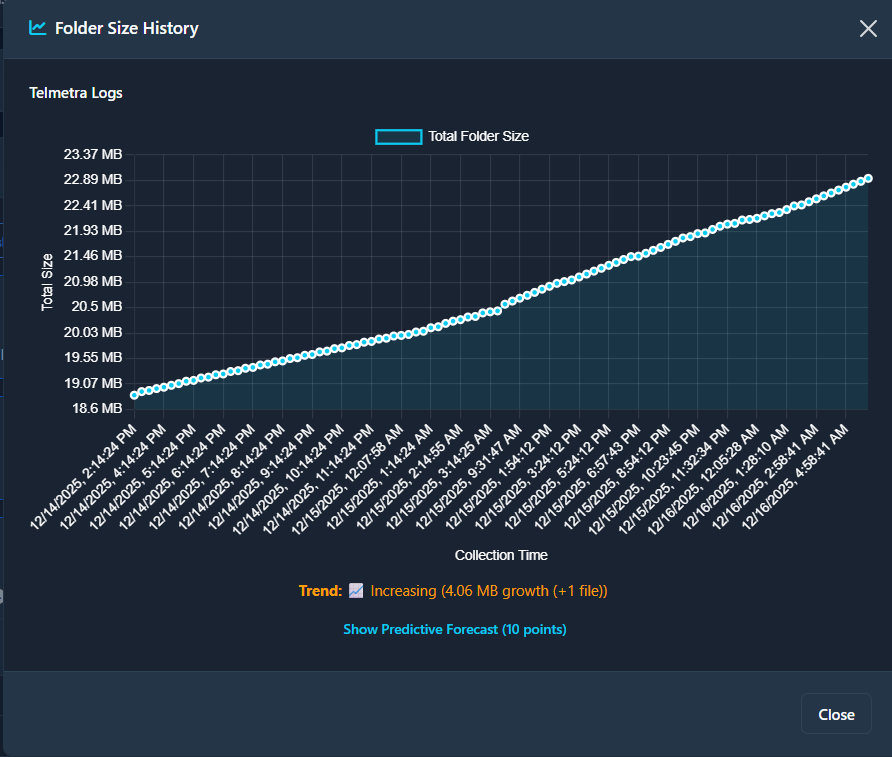
Every monitored segment includes a time-series chart showing folder size over time. This is useful for:
- 🔎 Identifying when a folder began growing
- ✅ Confirming cleanup success (a flat or dropping trend)
- 📈 Assessing growth rate to detect steady leaks vs. sudden bloat
📸 Example – Size History View
Built-in Alarms for Fast Triage
Telmetra supports three alarm types for each segment:
- 📏 Size Alarm – Triggers when total size exceeds a threshold
- 📈 Trend Alarm – Triggers on sharp growth over time
- 🆕 New Files Alarm – Triggers when new files are detected in a segment
These visual flags help technicians focus on the directories that changed — no need to click into each one.
2-Minute Workflow: Detect New Files and Verify Timestamp
- Go to Computer Details → Files & Folders
- Find the monitoring segment you’re tracking
- Click Refresh
- Check that Last Collected timestamp updates
- Verify Files count increases if new items were added
- Check if the New Files Alarm is triggered on the row
✅ Result: New files are confirmed, and their creation timestamp is reflected in the updated scan.
Common Pitfalls to Avoid
- ❌ Access-denied paths — OS permissions may block full folder visibility
- ❌ Renamed/moved folders — Break continuity with previous scans
- ❌ High-churn folders — Can trigger constant new file alarms (e.g. temp folders)
- ❌ Database directories — Step changes in size may skew trend analysis
✅ Use filtering or smarter segment choices to reduce false alarms and improve signal clarity.
FAQ
Q: Where is the Files & Folders panel?
A: In the Computer Details page → Files & Folders section.
Q: What is a monitoring segment?
A: A single tracked folder path that collects file count, size, and change data.
Q: What is “Last Collected”?
A: The timestamp of the most recent successful scan for that segment.
Q: What does the history chart show?
A: A time-series of folder size across past scans — ideal for spotting growth trends.
Q: What does a new files alarm detect?
A: It flags when new files appear between scans, based on the configured trigger.
Why This Matters
When clients call about “disk space low” or “something filled the server,” techs scramble to find the culprit. Telmetra speeds this up:
- Tracks what grew and when
- Logs growth trends and file counts
- Flags changes without login or scripts
This saves time, prevents outages, and makes root cause analysis far easier.
✅ Start Tracking Folder Growth in Minutes
Sign up for Telmetra and monitor one computer free — no commercial restrictions. Add your first folder segment and get instant history, alarms, and visibility.