Restart Windows services from Live Monitoring when they go down
When a Windows service fails, speed matters.
Telmetra lets technicians restart a failed Windows service directly from the Live Monitoring view — without opening a remote session or switching tools. The same monitor that detects the failure also provides the recovery action and verification signal.
This keeps incident response fast, contained, and auditable.
Answer first
Restarting a failed Windows service is often the fastest safe recovery step—if you can verify the service actually came back. Telmetra keeps detection → restart → verification in one place.
Quick steps
- Open the device’s Computer Details
- Go to Live Monitoring → Internal Monitors
- Find the Windows Service monitor that is Down
- Click Restart
- Wait for the next check (every 60 seconds) and confirm it returns to Up
Start here if you want the broader monitoring workflow:
Where This Feature Lives
You’ll find Windows service restart actions under:
- Computer Details
- Live Monitoring
- Internal Monitors
- Windows Service monitor rows
The restart action appears contextually — only when it’s relevant.
What You Can Do
- 🔴 Detect when a Windows Service monitor transitions to Down
- 🔁 Trigger a service restart directly from the monitor row
- ⏱️ Verify recovery using automatic 60-second health checks
- 📊 Confirm outcome via status, last check, response time, and 24-hour success rate
No guessing. No blind restarts.
How Windows Service Restart Works
When a Windows Service internal monitor reports a Down state, Telmetra exposes a Restart action on that specific monitor row.
What happens after you click Restart:
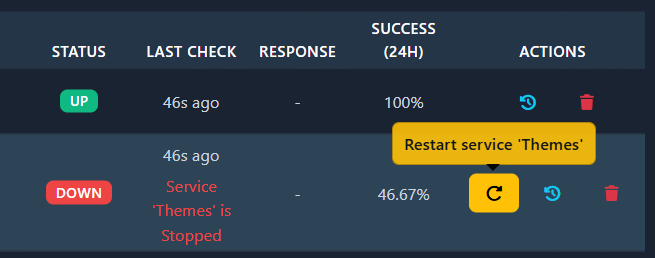
- The endpoint receives a restart request for the configured Windows service
- Telmetra attempts to restart the service
- Live Monitoring continues its 60-second check cadence
- Recovery is confirmed when the monitor transitions back to Up
The monitor itself remains the source of truth — not assumptions or manual checks.
Verifying Recovery After a Restart
After the restart attempt:
- Monitor Status
- Up → service is running
- Down → service is still stopped
- Next scheduled check updates:
- Last check timestamp
- Response time
- 24-hour success rate
This makes it easy to distinguish:
- Successful restarts
- Flapping services
- Persistent failures requiring escalation
2-Minute Workflow: Restart a Failed Windows Service
Goal: Recover a stopped Windows service and confirm success.
- Open Computers
- Select the affected device to open Computer Details
- Scroll to Live Monitoring
- Open the Internal Monitors tab
- Locate the Windows Service monitor showing Down
- Click Restart on that same row
- Wait for the next health check (runs every 60 seconds)
- Confirm the status changes to Up with a new check timestamp
✅ Outcome: The service is running and confirmed by the monitor.
Things to Double-Check
- ✔️ The monitor type is Windows Service (not HTTP or Process)
- ✔️ The monitor is Enabled
- ✔️ The endpoint is online and reporting checks
- ✔️ The configured service name matches the intended Windows service
- ✔️ You wait for the next scheduled check before judging success
FAQ
Does Telmetra continue monitoring after a restart?
Yes. Health checks continue every 60 seconds, regardless of restart attempts.
When is the restart action available?
Only when the Windows Service monitor is in a Down state.
How do I confirm the restart worked?
When the monitor returns to Up on a subsequent check with an updated timestamp.
Where can I see detailed status information?
In the Internal Monitors table and the monitor’s detail view.
Does restarting one service affect other monitors?
No. The action applies only to the specific Windows service configured for that monitor.
Why This Matters
In many environments, restarting a failed service is the fastest safe recovery step — but only if you can verify it worked.
Telmetra keeps detection, recovery, and verification in one place:
- No remote login required
- No context switching
- No “did it actually come back up?” guessing
That means faster recovery and cleaner incident handling.
✅ Recover Services Faster — Without Leaving Live Monitoring
If a service goes down, Telmetra lets you act immediately and confirm recovery through the same signal that detected the failure.