Windows event log monitoring is only useful if someone reads the logs, and nobody has time to read them on every client computer. Telmetra Insights reads a computer's recent event log and health data, applies fixed rules, and tells you what it found in plain words.
It is off until an administrator turns it on. Watch the short tour, then use the steps below to try it on one computer. For the wider picture, see Telmetra monitoring.
Answer first
Windows event log monitoring in Telmetra means Telmetra Insights checks a computer's recent Windows event log and health data against fixed rules. It turns what it finds into findings rated Critical, Warning or Info, each with what to do next.
It looks for known kinds of problems, such as disk errors, unexpected shutdowns, failing backups and failed sign-ins from the internet. It is not a security audit, and it does not fix anything for you.
Quick steps
- An administrator opens Profile and turns on Telmetra Insights for my organization.
- Open a computer, press the lightbulb next to the bell at the top of its page, then press Analyze now. The computer must be online to be analysed.
- Read each finding: how serious it is, what was seen, and what to do.
- Open Notifications to find the same findings later. Each one is marked with an Insights badge.
- Use Not a problem here on a finding that does not apply to that computer right now, or Mute for this computer on one that never will.
- Open Notifications, then Insights report, pick a client, a period and a language, and print the report or save it as a PDF from the report page.
Key takeaways
- Insights is off for an organization until its administrator turns it on. While it is off, nothing is checked.
- Findings come from fixed rules. No AI is involved.
- Event logs are counted and grouped on the computer, and are not stored on Telmetra servers for this purpose.
- A client report says whether a problem was still present at the last check. It does not claim a problem was fixed.
- Insights covers known kinds of problems only. An empty result does not prove a computer is healthy.
Table of contents
- What Telmetra Insights looks for
- Turn Insights on
- Check a computer
- Read a finding
- Send a report to your customer
- Privacy and control
- What Insights does not do
- Common pitfalls
- FAQ
- Next step
What Telmetra Insights looks for
Insights reads the recent Windows event log of a computer, plus health data Telmetra already has: drive health, Windows updates, antivirus status, backups and temperatures. Then it applies rules written by Telmetra engineers.
Here is what the rules cover today.
| Problem | What it may mean |
|---|---|
| Disk errors reported by Windows | A drive, cable or controller may be failing |
| Unexpected shutdowns or restarts | A power, overheating or driver problem |
| File system problems | Damage to the file system. Back up first, then check the disk |
| Hardware errors | Failing memory or an overheating processor |
| Repeated failed sign-ins from the internet (SQL Server and Remote Desktop) | Something is trying to guess passwords |
| SQL Server jobs or replication that fail | Reports or data copies may be out of date |
| Windows updates that keep failing, or security updates waiting for weeks | The computer may be falling behind on patches |
| Backups with no recent success | Data may not be protected |
| No active antivirus, or old definitions | The computer may be exposed |
| A new kind of error that started recently | Often follows a change, such as an update or a driver |
| The same problem on several computers of one client | Often a shared cause, so look for it first |
A few checks, such as failed sign-ins, need a current Telmetra agent on the computer. Insights says so when it cannot run one, instead of reporting nothing.
Turn Insights on
Insights is switched on for a whole organization, by an administrator, in Profile. Until then it does nothing, and the lightbulb on a computer page tells a technician that Insights is not turned on.
- Sign in as an administrator.
- Open Profile, find the Telmetra Insights card and turn on Telmetra Insights for my organization.
- Telmetra records who turned it on and when.
An administrator can turn it off again at any time. While it is off, no computer of the organization is checked, and the findings Insights created earlier are hidden. Nothing is deleted, so they reappear if it is turned back on.
Check a computer
Technicians and administrators can check any online computer of their organization.
- Open the computer's page.
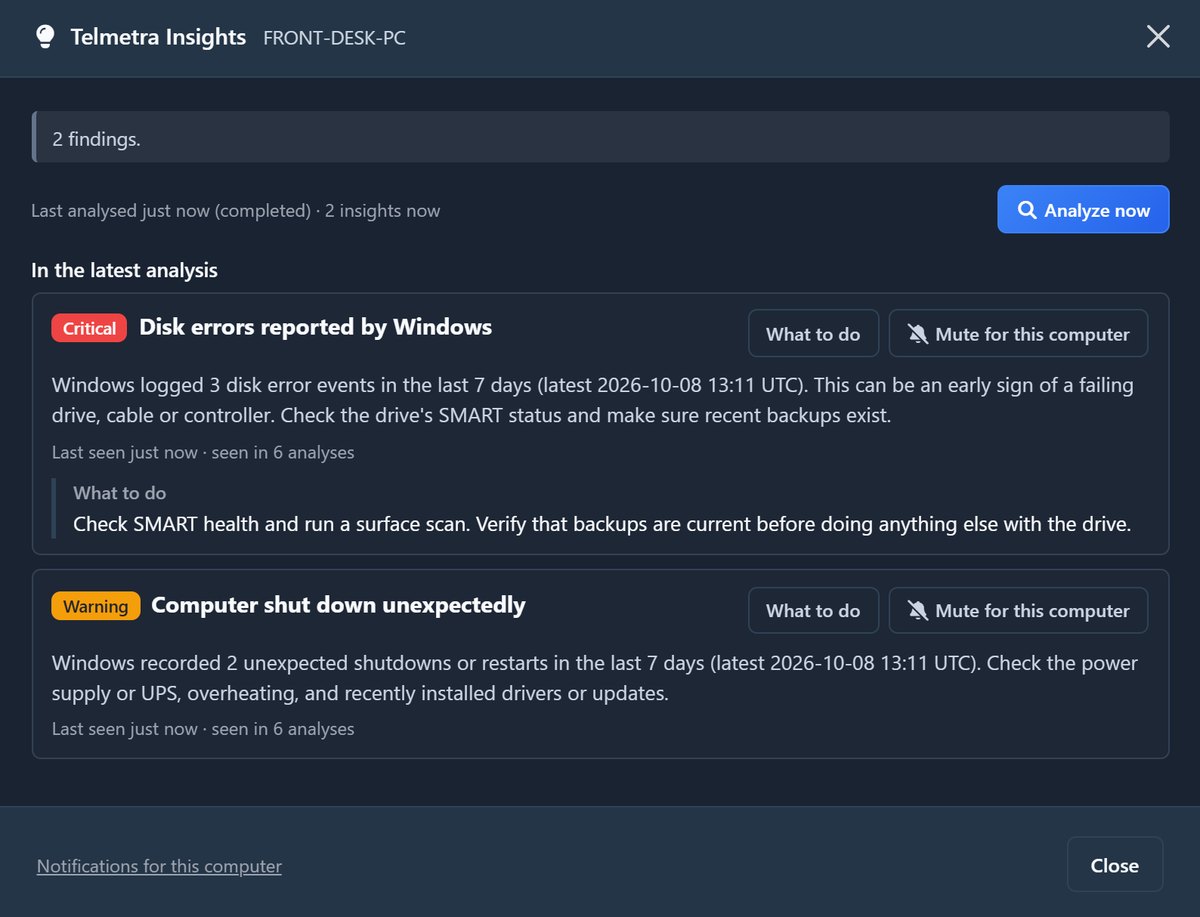
- Press the lightbulb next to the bell at the top of the page. The computer's Telmetra Insights window opens.
- Press Analyze now and wait a few seconds. The window shows how many findings there are and lists each one.
Each finding has a severity. A finding is Critical only when the evidence is strong: the problem keeps repeating, the event is serious on its own, or a second fact points the same way, such as a drive whose own health data agrees with the disk errors. Warning means something deserves attention soon. Info is for your information.
A computer that is offline cannot be checked, but its window still lists what was found before. A computer that is busy with a remote session or a backup is checked later. A second check on the same computer is held back for about a minute.
Read a finding
Every finding says the same three things: what was seen, how serious it is, and what to do next.
Open the finding from Notifications to see more:
- What to do: concrete next steps for a technician.
- Wording for client reports: the plain sentence that the client report will use, in English or Bulgarian.
- Evidence: counts, dates and identifiers. No raw log text is kept.
- Not a problem here: hides the finding for 30 days, unless it gets worse, and leaves it out of reports.
- Mute for this computer: stops that kind of finding from being announced for that one computer, and leaves it out of reports, until you unmute it in the computer's Telmetra Insights window. Other computers are not affected.
Push and e-mail notifications follow each user's own notification settings, as with other alerts.
Send a report to your customer
The client report is built from the findings Insights has recorded, so it can look back further than the 30 days that notifications are kept. It never contacts the computer.
- Open Notifications and choose Insights report.
- Pick a client, a period (7, 30 or 90 days, 6 or 12 months) and a language.
- Press Open report. The report opens in a new tab. Print it or save it as a PDF from there.
The report shows how many of the client's computers were checked, the findings by severity, and for each finding when it was first and last seen and whether it was still present at the last check. Findings you marked Not a problem here or muted are left out.
Telmetra does not send the report to anyone. It is your document, and you decide whether to share it.
Privacy and control
- Off by default. An administrator turns Insights on, and the choice is recorded with who and when.
- Counted on the computer. Event logs are counted and grouped on the monitored computer. They are not stored on Telmetra servers for this purpose.
- Older agents. A computer that runs an older Telmetra agent cannot count events itself. For that computer, the console reads recent matching events and processes them in memory, without storing them.
- What Telmetra receives. Counts, event identifiers, source names and a few facts the rules extract, such as the internet addresses and account names behind failed sign-ins.
- What is kept. Findings stay as notifications for 30 days. Per-day counts of event types, never message text, are kept for 35 days so Insights can tell a new kind of error from a familiar one. A record of each finding's wording and dates, without event data, is kept for one year after the finding was last seen, so reports can look back.
- No AI. Findings come from fixed rules.
The details are in section 11 of the Privacy Policy.
What Insights does not do
- It does not fix anything. It tells a technician what to look at.
- It covers known kinds of problems only. A clean result does not prove a computer is healthy.
- It is not a security audit or a certification. A finding about failed sign-ins does not say whether anyone got in.
- It cannot check a computer that is offline, and a check that could not run is not evidence of a problem-free computer.
- It checks Windows computers today.
- A report says whether a problem was still present at the last check. It does not say a problem was fixed, because Insights cannot know that.
Common pitfalls
- Expecting findings before it is on. Nothing is checked until an administrator turns Insights on in Profile.
- Reading "Present at the last check" as a failure. It only says the problem was still there the last time the computer was checked.
- Hiding findings too quickly. Not a problem here keeps a finding quiet for 30 days and leaves it out of reports. Use it only when it really does not apply.
- Sharing a report without reading it. You are responsible for what you hand to your customer. Read it first.
FAQ
What is Windows event log monitoring in Telmetra?
Telmetra Insights checks a computer's recent Windows event log and health data against fixed rules. It turns what it finds into Critical, Warning or Info findings with what to do next.
Is Telmetra Insights on by default?
No. It is off for an organization until an administrator turns it on in Profile. While it is off, no computer of the organization is checked.
Who can turn on Telmetra Insights, and who can check a computer?
An administrator turns it on for the organization. Technicians and administrators can then check a computer. Viewers cannot run a check or change a finding.
Does Telmetra store my Windows event logs?
No. Event logs are counted and grouped on the monitored computer, and the event logs themselves are not stored on Telmetra servers for this purpose. Telmetra keeps findings, per-day counts of event types and a record of each finding's wording. The Privacy Policy says how long, and what happens on a computer with an older agent.
Does Telmetra Insights use AI?
No. Findings come from fixed rules written by Telmetra engineers.
Can I send a report to my customer?
Yes. Open the Insights report in Notifications, pick the client and period, then print it or save it as a PDF. Telmetra does not send reports, and the report is your own document.
Does Telmetra Insights work on Linux or macOS?
Not today. Telmetra Insights checks Windows computers.
Is Telmetra Insights a SIEM or a security audit?
No. It surfaces common reliability and security-hygiene problems that an IT technician should look at. It does not replace a security audit.
Next step
Turn on Telmetra Insights in Profile, press the lightbulb and Analyze now on one online computer, then open the report. If you manage a lot of computers, start with the one your customers call about most.
To go deeper on spotting trouble early, read how Telmetra detects computer failure before outages, the Windows maintenance and security playbook and the IT monitoring and alerting guide.
Social sharing hooks
- Windows event log monitoring without reading logs: Telmetra Insights turns recent event log entries into plain-language findings and a client report. Off until an administrator turns it on. https://telmetra.com/blog/windows-event-log-monitoring-telmetra-insights
- Disk errors, unexpected shutdowns, failing backups: see them before the customer calls. A short video tour. https://telmetra.com/blog/windows-event-log-monitoring-telmetra-insights